Feature · 03
Custom haptic Flows
Arrange haptic cues into repeatable Loops, then combine Loops into a complete Flow. Edit on iPhone and run on Apple Watch.
Three terms to know
Build a Flow from Segments
- Segment
One haptic + an interval - →
- Loop
1–3 Segments - →
- Flow
1–30 Loops
Segment is the smallest rhythm unit, measured from the start of one haptic to the start of the next. Loop plays 1–3 Segments in order and repeats them a specified number of times. Flow arranges multiple Loops into a complete activity.
iPhone
Create and edit a Flow
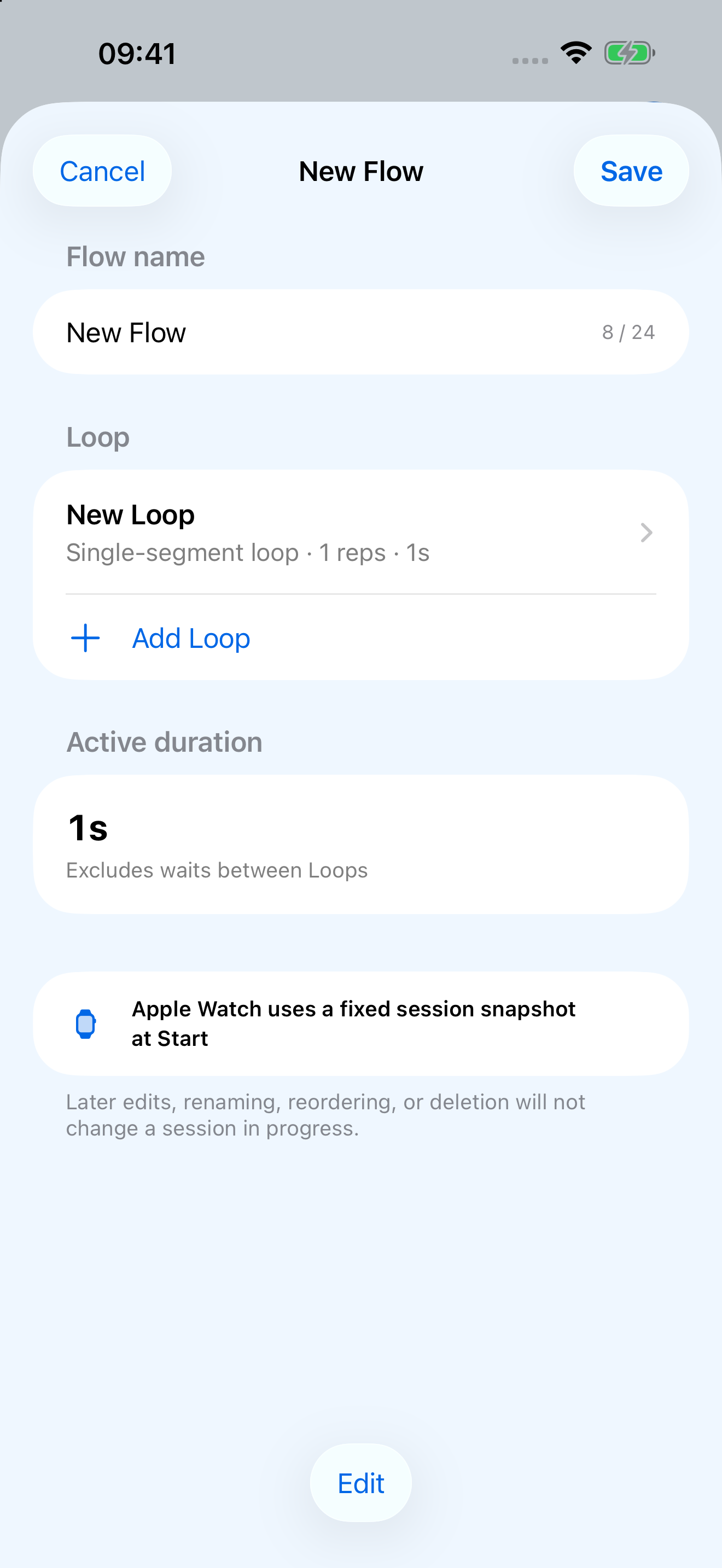
- Create and name a Flow.
Save up to 15 Flows. A name can contain up to 24 weighted characters, roughly 12 Chinese characters.
- Add a Loop.
Choose one, two, or three Segments and 1–99 repetitions. Loop names can contain up to 12 weighted characters, roughly 6 Chinese characters.
- Edit each Segment.
Choose a haptic pattern and an interval of 1–180 seconds until the next Segment starts.
- Arrange and save.
Flows and Loops can be duplicated or reordered. Saving writes to iPhone first; normally, return home and tap “Sync” to publish to Watch. Changes affecting Flow reminders automatically publish the full configuration. Sessions already in progress remain unchanged.
When increasing a Loop from one Segment to two or three, each new Segment defaults to “Single short + 1 second.” Reducing the count removes trailing Segments immediately, without an additional confirmation.
A common misconception
Intervals are measured start to start
A Segment interval is not a wait after the haptic ends. It begins when the current haptic starts and ends when the next one starts. The final interval of the final Segment must also finish before the Loop is complete.
| Pattern | Approximate feel | Suggested use |
|---|---|---|
| Single short | One brief, distinct haptic | A regular marker or light reminder |
| Double short | Two short haptics | A marker that needs to stand out |
| Single long | One haptic with a more sustained feel | A more prominent phase cue |
| Double long | Two haptics with a more sustained feel | A phase transition or important marker |
Apple Watch
The ready screen and running ring
The ready screen shows the Flow name, Loop count, and active duration. Tapping “Start” fixes the settings for that session. Later syncing, renaming, reordering, or deletion on iPhone will not change the activity in progress.
The first haptic is the pattern you chose for Segment A; no extra start cue is added. The Cycle Ring’s nodes and arc lengths represent Segments and intervals. Its center shows the current Loop name and repetition count.
Pausing preserves the current Flow, Loop, repetition, Segment, and exact remaining interval. Resuming does not replay a haptic that already occurred. Exiting early returns to the ready screen without a completion cue.
Key interaction
Loops do not advance automatically
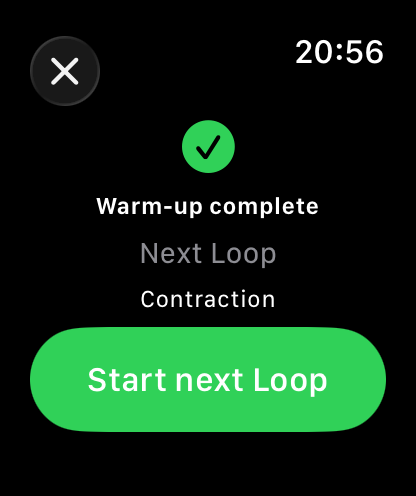
After a non-final Loop’s last interval, bluebell plays a completion cue and waits for confirmation. It does not automatically enter the next Loop. The continue button is temporarily disabled during that cue to prevent overlap with the next Loop’s first haptic.
When the button becomes available, tap “Start next Loop.” On a Double Tap-capable model running watchOS 11 or later, you can also tap your thumb and index finger together twice. Both actions do the same thing.
Design limits
Keep Flows within runnable limits
| Item | Limit |
|---|---|
| Flow | Up to 15 Flows, each with 1–30 Loops |
| Loop | 1–3 Segments; 1–99 repetitions; no more than 55 minutes of active time per Loop |
| Segment | 1–180 seconds from one start to the next |
| Total active duration | Excludes the time spent waiting for confirmation between Loops |